
¿Necesito activar el roaming de datos para la eSIM?
Muchas eSIM de viaje necesitan el roaming de datos activado para funcionar en el extranjero. Aprende cuándo activar el roaming, a qué SIM se aplica y cómo evitar cargos de roaming accidentales.
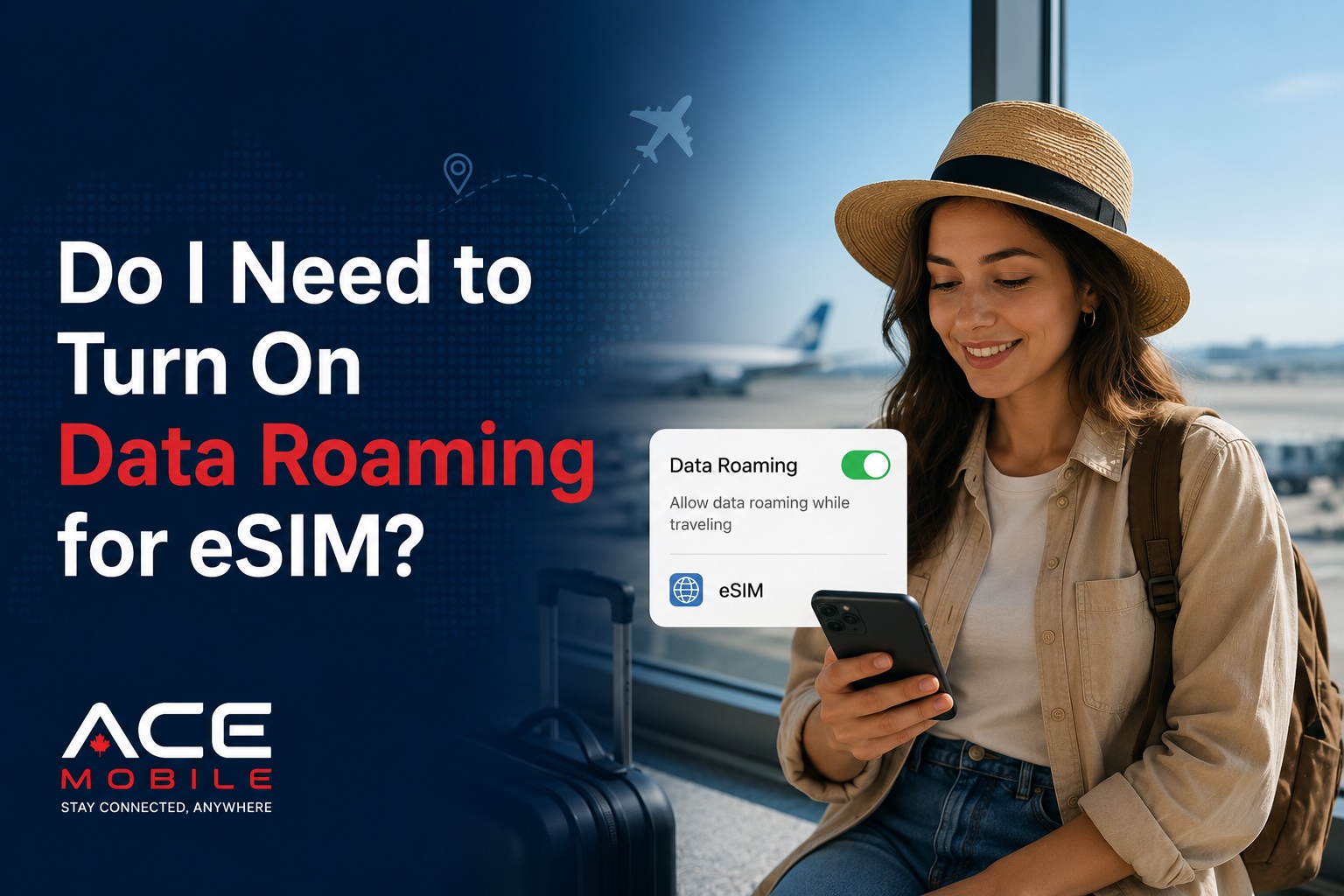
¿Necesito activar el roaming de datos para la eSIM?
Sí, en muchos casos, necesitas activar el roaming de datos para que una eSIM de viaje funcione correctamente.
Esto puede sonar confuso porque a menudo se les dice a los viajeros que «desactiven el roaming» para evitar cargos elevados. El detalle importante es para qué SIM estás activando el roaming.
Para muchas eSIM de viaje, deberías:
- Activar el roaming de datos para tu eSIM de viaje, si tu proveedor de eSIM lo requiere
- Desactivar el roaming de datos para tu SIM principal, a menos que quieras usar intencionadamente el plan de roaming de tu operador
- Establecer los datos móviles en tu eSIM de viaje
- Comprobar que tu teléfono no vuelve automáticamente a tu SIM principal para los datos
En otras palabras, el roaming de datos no siempre es malo. Es un ajuste del teléfono que permite que una SIM o eSIM use redes asociadas fuera de su red principal. Para una eSIM de viaje, esa puede ser exactamente la forma en que el plan te conecta en el extranjero.
Esta guía explica cuándo activar el roaming, por qué algunas eSIM lo necesitan, cómo evitar cargos sorpresa y qué hacer si tu eSIM de viaje sigue sin funcionar.
Respuesta rápida: ¿el roaming de datos debe estar activado o desactivado para la eSIM?
Para una eSIM de viaje, el roaming de datos a menudo necesita estar activado. Para tu SIM principal, el roaming de datos normalmente debe estar desactivado, a menos que estés usando intencionadamente el servicio de roaming internacional de tu operador.
| SIM o eSIM | Ajuste de roaming de datos | Por qué |
|---|---|---|
| eSIM de viaje | Normalmente activado | Muchas eSIM de viaje se conectan a través de redes asociadas de roaming |
| SIM principal | Normalmente desactivado | Ayuda a evitar cargos accidentales de datos en roaming |
| SIM física local comprada en el extranjero | Normalmente desactivado o según el proveedor | Las SIM locales pueden no necesitar roaming dentro del mismo país |
| eSIM global o regional | Normalmente activado | Los planes regionales a menudo dependen de redes asociadas en varios países |
Sigue siempre las instrucciones de configuración de tu proveedor de eSIM. Algunos planes pueden funcionar sin roaming, pero muchos planes de eSIM internacionales lo requieren.
¿Por qué una eSIM de viaje necesita roaming de datos?
Una eSIM de viaje a menudo funciona conectando tu teléfono a redes asociadas locales en el país de destino. Tu perfil de eSIM puede no pertenecer directamente al operador local. En su lugar, puede usar acuerdos de roaming para acceder a las redes móviles locales.
Por eso tu teléfono puede necesitar el roaming de datos activado en la línea de la eSIM de viaje.
Por ejemplo:
- Compras una eSIM de viaje para Japón, Canadá, Europa o Hong Kong
- La eSIM se conecta a una o varias redes móviles locales
- Tu teléfono trata esa conexión como roaming para ese perfil de eSIM
- El roaming de datos debe estar activado para que la eSIM transmita datos móviles
Esto no significa automáticamente que tu SIM principal esté en roaming. El ajuste se aplica por línea SIM en la mayoría de los teléfonos modernos. El objetivo es permitir que tu eSIM de viaje use datos móviles mientras evitas que tu SIM principal use datos de roaming costosos.
¿Activar el roaming de datos para la eSIM genera cargos adicionales?
Activar el roaming de datos para tu eSIM de viaje no debería generar cargos de roaming de tu operador principal si tu teléfono está configurado correctamente.
Los ajustes clave son:
- Los datos móviles deben asignarse a tu eSIM de viaje.
- El roaming de datos debe activarse para la eSIM de viaje si es necesario.
- El roaming de datos debe desactivarse para tu SIM principal a menos que quieras usarlo.
- El cambio automático de datos móviles debe desactivarse si quieres evitar que tu teléfono vuelva a tu SIM principal.
Tu eSIM de viaje suele ser de prepago. Eso significa que compras una cantidad de datos por adelantado, y tu uso está limitado por las reglas de ese plan. Tu operador principal solo interviene si tu teléfono usa tu SIM principal para llamadas, mensajes o datos móviles en el extranjero.
La confusión más común: ¿roaming para qué SIM?
La palabra «roaming» causa confusión porque los viajeros suelen pensar que solo significa el costoso roaming del operador principal. Pero en los teléfonos con doble SIM, el roaming puede aplicarse por separado a cada SIM o eSIM.
Esta es la diferencia práctica:
| Ajuste | Configuración de viaje segura |
|---|---|
| Roaming de datos de la eSIM de viaje | Activado, si es necesario |
| Roaming de datos de la SIM principal | Desactivado, salvo roaming intencionado |
| Línea de datos móviles | eSIM de viaje |
| Línea de voz predeterminada | SIM principal o línea preferida |
| Línea de SMS | SIM principal si necesitas códigos de verificación |
| Cambio automático de datos | Desactivado salvo que entiendas el riesgo |
Para los usuarios primerizos de eSIM, la regla más segura es:
Usa la eSIM de viaje para los datos. Mantén desactivado el roaming de datos de la SIM principal.
iPhone: cómo activar el roaming de datos para una eSIM de viaje
En iPhone, normalmente puedes controlar el roaming de datos por separado para cada línea.
Pasos para iPhone
- Abre Ajustes.
- Toca Datos móviles o Celular.
- En SIM, selecciona tu eSIM de viaje.
- Toca Itinerancia de datos y actívala si tu proveedor lo requiere.
- Vuelve a Datos móviles.
- Toca Datos celulares.
- Selecciona tu eSIM de viaje como línea de datos.
- Desactiva Permitir cambios de datos celulares si no quieres que tu iPhone cambie a tu SIM principal.
Qué comprobar antes de usar los datos
Asegúrate de que tu SIM principal no esté seleccionada en Datos celulares. Si lo está, tu teléfono podría usar los datos de roaming de tu operador principal en lugar de tu eSIM de viaje de prepago.
Una buena configuración suele verse así:
| Ajuste de iPhone | Configuración de viaje recomendada |
|---|---|
| Datos celulares | eSIM de viaje |
| Itinerancia de datos de la eSIM de viaje | Activada, si es necesario |
| Itinerancia de datos de la SIM principal | Desactivada |
| Permitir cambios de datos celulares | Desactivado |
| Línea de voz predeterminada | Tu preferencia |
| iMessage y FaceTime | Normalmente mantener el número existente o el ID de Apple |
Android: cómo activar el roaming de datos para una eSIM de viaje
La terminología de Android varía según la marca del teléfono, pero el concepto es similar.
Pasos generales en Android
- Abre Ajustes.
- Ve a Red e Internet, Conexiones o Red móvil.
- Toca SIM, Administrador de SIM o tu perfil de eSIM de viaje.
- Establece Datos móviles o SIM preferida para datos móviles en tu eSIM de viaje.
- Activa Roaming de datos para la eSIM de viaje si es necesario.
- Desactiva el roaming de datos para tu SIM principal a menos que quieras usarlo intencionadamente.
- Reinicia tu teléfono si la eSIM no se conecta.
Teléfonos Samsung
En muchos teléfonos Samsung Galaxy, comprueba:
- Ajustes > Conexiones > Administrador de SIM
- Elige tu eSIM de viaje para los datos móviles
- Luego revisa Redes móviles > Roaming de datos
Teléfonos Google Pixel
En muchos teléfonos Google Pixel, comprueba:
- Ajustes > Red e Internet > SIM
- Selecciona tu eSIM de viaje
- Activa el roaming si es necesario
- Establece los datos móviles en la eSIM de viaje
Como los menús de Android pueden variar, busca términos como Administrador de SIM, Datos móviles, SIM preferida, Roaming o Red.
¿Qué pasa si el roaming de datos está desactivado?
Si tu eSIM de viaje requiere roaming y el roaming está desactivado, tu teléfono puede mostrar barras de señal pero seguir sin Internet.
Puede que notes:
- Las páginas web no cargan
- Los mensajes de WhatsApp no se envían
- Los mapas no pueden buscar rutas
- Las aplicaciones de transporte no se actualizan
- El correo no se sincroniza
- El teléfono dice «Sin conexión a Internet» o «No se pudo activar la red de datos móviles»
- Ves un nombre de red móvil pero los datos no funcionan
Este es uno de los problemas de configuración de eSIM de viaje más comunes.
¿Qué pasa si mi eSIM sigue sin funcionar después de activar el roaming?
Si tu eSIM sigue sin funcionar, sigue esta lista de solución de problemas.
1. Confirma que la eSIM está instalada
Comprueba que el perfil de la eSIM aparece en los ajustes de tu teléfono. Si no aparece, es posible que la eSIM no se haya instalado correctamente.
2. Confirma que el plan está activo
Algunos planes de eSIM se activan inmediatamente tras la instalación. Otros se activan cuando se conectan por primera vez a una red compatible. Consulta las instrucciones de tu proveedor.
3. Establece los datos móviles en la eSIM de viaje
Activar el roaming no es suficiente si tu teléfono sigue usando tu SIM principal para los datos móviles.
4. Activa el roaming de datos en la eSIM de viaje
Asegúrate de que el roaming está activado para la línea de la eSIM, no solo de forma global o en otra SIM.
5. Reinicia tu teléfono
Reiniciar puede actualizar la conexión a la red móvil.
6. Activa y desactiva el modo avión
Activa el modo avión durante 20 a 30 segundos y luego desactívalo. Esto obliga a tu teléfono a volver a conectarse.
7. Prueba la selección manual de red
Algunos proveedores de eSIM indican redes preferidas. Si la selección automática de red no funciona, elige manualmente una red compatible.
8. Comprueba los ajustes de APN
La mayoría de las eSIM configuran los ajustes de APN automáticamente, pero algunas requieren un APN específico. Sigue exactamente las instrucciones de tu proveedor.
9. Comprueba la cobertura
Si estás bajo tierra, en una zona rural, dentro de un edificio grande o lejos de las antenas compatibles, muévete a un lugar más despejado y prueba de nuevo.
10. Contacta con el soporte
Si la eSIM sigue sin funcionar, contacta con tu proveedor con el modelo de tu teléfono, tu destino, capturas de pantalla de los ajustes de SIM y cualquier mensaje de error.
¿Puedo mantener mi SIM principal activada mientras uso los datos de la eSIM?
Sí. Muchos viajeros mantienen su SIM principal activada para llamadas, SMS, iMessage, verificación de WhatsApp, códigos bancarios o contacto de emergencia.
Una configuración común es:
- SIM principal: activada para llamadas y SMS
- Roaming de datos de la SIM principal: desactivado
- eSIM de viaje: activada para datos móviles
- Roaming de datos de la eSIM de viaje: activado si es necesario
- Línea de datos móviles: eSIM de viaje
Esta configuración es útil porque muchas eSIM de viaje solo de datos no incluyen un número de teléfono para SMS. Si necesitas códigos de verificación, tu SIM principal puede seguir siendo importante.
Sin embargo, tu operador principal puede cobrar por llamadas, mensajes o servicios de roaming en el extranjero. Comprueba la política de tu operador antes de depender de tu SIM principal.
¿Funcionará WhatsApp si el roaming de datos está activado para la eSIM?
Sí. WhatsApp puede funcionar a través de la conexión de datos de tu eSIM de viaje si la eSIM está activa y los datos móviles funcionan.
A WhatsApp normalmente no le importa si Internet proviene de:
- Datos de la eSIM de viaje
- Datos de roaming de la SIM principal
- Wi-Fi del hotel
- Wi-Fi del aeropuerto
- Un punto de acceso
Si tu eSIM de viaje requiere roaming de datos, es posible que WhatsApp no funcione hasta que se active el roaming para esa línea de la eSIM.
Tu número de WhatsApp normalmente sigue siendo el mismo porque WhatsApp está vinculado al número que usaste al configurar la cuenta, no a la conexión de datos de viaje temporal.
¿Debo activar el roaming antes de salir o después de llegar?
Depende de las reglas de activación de tu proveedor.
Si tu plan de eSIM se activa solo cuando se conecta a una red compatible, activar el roaming antes de salir puede estar bien. Si tu plan se activa inmediatamente tras la instalación, quizá quieras esperar hasta más cerca del viaje.
Un enfoque práctico:
- Instala la eSIM antes de salir si tu proveedor lo permite.
- Lee atentamente las instrucciones de activación.
- Mantén tu SIM principal como línea de datos móviles hasta el viaje, si es necesario.
- Tras aterrizar, establece los datos móviles en la eSIM de viaje.
- Activa el roaming de datos para la eSIM de viaje si es necesario.
- Prueba el acceso a Internet antes de salir del aeropuerto.
No elimines tu eSIM tras la instalación a menos que tu proveedor te lo indique. Algunas eSIM no se pueden reinstalar después de eliminarlas.
Lista de verificación de roaming de la eSIM de viaje
Antes de tu viaje:
- Confirma que tu teléfono es compatible con eSIM
- Confirma que tu teléfono está desbloqueado
- Instala tu eSIM de viaje si está permitido
- Guarda las instrucciones de configuración sin conexión
- Comprueba si tu eSIM requiere roaming de datos
- Descarga mapas sin conexión y documentos de viaje
- Haz copia de seguridad de conversaciones importantes de WhatsApp o iMessage
Después de aterrizar:
- Activa la línea de la eSIM de viaje
- Establece los datos móviles en la eSIM de viaje
- Activa el roaming de datos para la eSIM de viaje si es necesario
- Desactiva el roaming de datos para tu SIM principal
- Desactiva el cambio automático de datos si es necesario
- Reinicia tu teléfono o activa y desactiva el modo avión
- Prueba una página web, una aplicación de mapas y una aplicación de mensajería
Errores comunes que debes evitar
Error 1: desactivar el roaming para la eSIM de viaje
Si el proveedor requiere roaming, la eSIM puede no funcionar sin él.
Error 2: activar el roaming para la SIM principal por accidente
Esto puede generar cargos de roaming de tu operador principal. Comprueba que estás ajustando la línea SIM correcta.
Error 3: dejar activado el cambio automático de datos
Algunos teléfonos pueden cambiar los datos entre SIM cuando una conexión es débil. Esto puede ser útil en la vida diaria, pero arriesgado al viajar si tu SIM principal tiene roaming costoso.
Error 4: instalar la eSIM pero no seleccionarla para los datos
La eSIM puede estar instalada correctamente, pero tu teléfono puede seguir usando otra SIM para los datos móviles.
Error 5: eliminar la eSIM cuando no se conecta
No elimines la eSIM como primer paso de solución de problemas. Muchos problemas de activación se deben a ajustes, no a una mala instalación.
Dónde encaja ACE Mobile
ACE Mobile ofrece planes de eSIM de viaje de prepago para viajeros que quieren datos móviles antes de aterrizar. Para los usuarios primerizos de eSIM, el paso de configuración más importante es entender qué línea debe gestionar los datos móviles y si se requiere roaming de datos para la eSIM de viaje.
Antes de elegir cualquier eSIM de viaje, comprueba la cobertura del destino, la cantidad de datos, la validez del plan, la compatibilidad con el punto de acceso, los pasos de instalación y las instrucciones de roaming. Puedes explorar las opciones de eSIM de viaje de ACE Mobile en acemobile.ca.
Preguntas frecuentes
¿Necesito activar el roaming de datos para la eSIM?
Para muchas eSIM de viaje, sí. El roaming de datos a menudo necesita estar activado para la eSIM de viaje porque se conecta a través de redes asociadas en el extranjero.
¿El roaming de datos debe estar activado para mi SIM principal?
Normalmente no. Mantén el roaming de datos desactivado para tu SIM principal a menos que quieras usar intencionadamente el plan de roaming de tu operador.
¿Activar el roaming de la eSIM generará cargos de mi operador principal?
No, si tu teléfono usa la eSIM de viaje para los datos móviles y tu SIM principal no se usa para datos de roaming. Comprueba siempre los ajustes de tu línea de datos móviles.
¿Por qué mi eSIM muestra señal pero no Internet?
Tu teléfono puede estar conectado a una red pero sin poder usar datos. Las causas comunes incluyen el roaming de datos desactivado, una línea de datos móviles incorrecta, un plan caducado, un problema de APN o una red no compatible.
¿El roaming de datos es lo mismo que los datos móviles?
No. Los datos móviles permiten que tu teléfono use Internet celular. El roaming de datos permite que una SIM use datos móviles en redes asociadas fuera de su red principal.
¿Debo activar el modo avión cuando uso una eSIM?
No necesitas mantener el modo avión activado. Sin embargo, activar y desactivar el modo avión puede ayudar a actualizar la conexión durante la solución de problemas.
Reflexiones finales
Muchas eSIM de viaje necesitan el roaming de datos activado para funcionar en el extranjero. La clave es activar el roaming para la eSIM de viaje, no para tu SIM principal.
Para una configuración segura, establece los datos móviles en tu eSIM de viaje, activa el roaming de datos para esa eSIM si es necesario, desactiva el roaming de datos en tu SIM principal y desactiva el cambio automático de datos si quieres evitar el uso accidental de datos de tu operador principal.
Una vez que entiendes qué SIM hace qué, el roaming de la eSIM de viaje se vuelve mucho menos confuso.
Artículos relacionados
- ¿Qué es la eSIM y cómo funciona?
- Cómo instalar una eSIM antes de viajar
- ¿Puedo usar WhatsApp con una eSIM de viaje?
- ¿Qué pasa si te quedas sin datos de eSIM mientras viajas?
- Planes de eSIM de viaje de ACE Mobile