返去 Blog
eSIM2026年5月28日13 分鐘閱讀

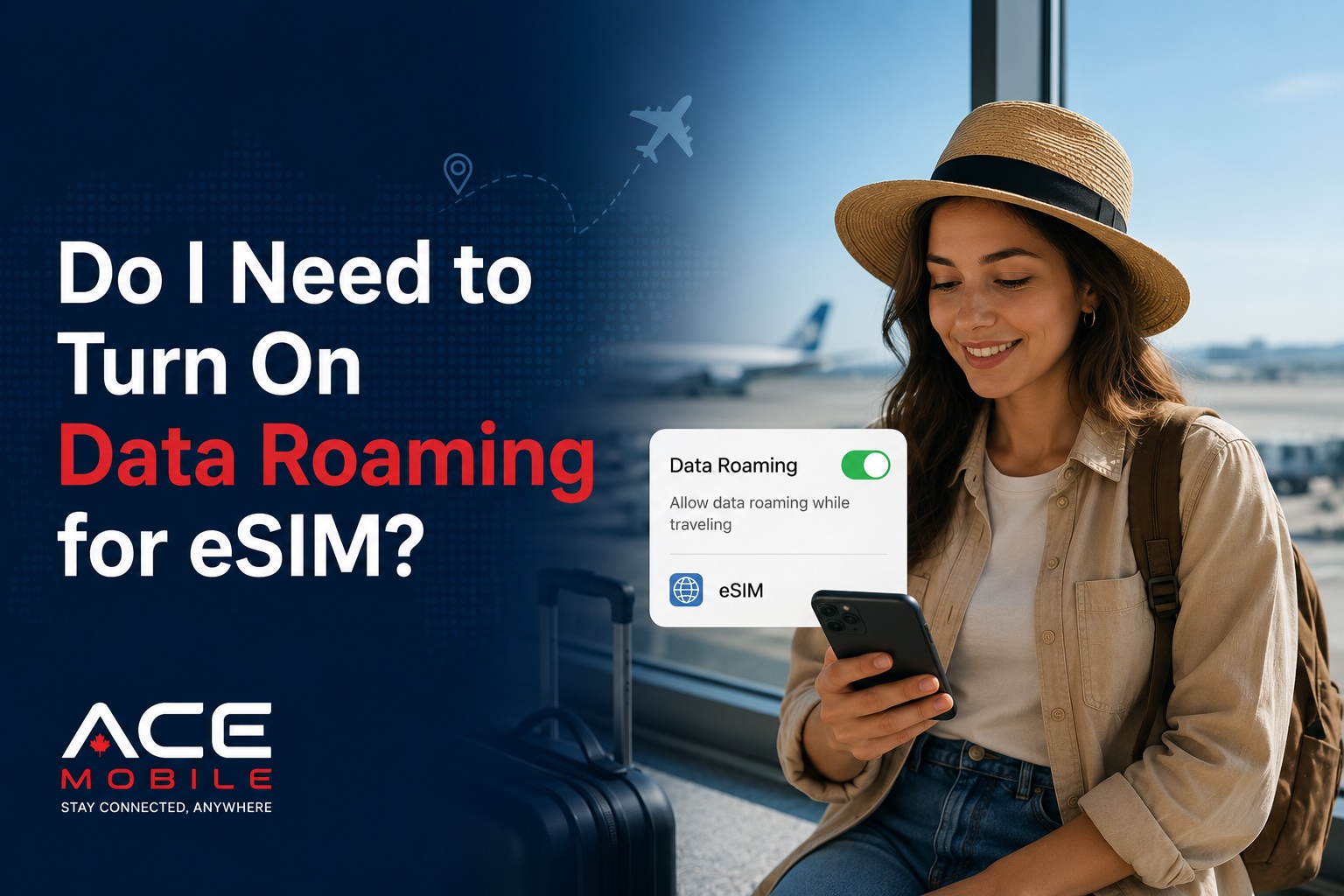
Do I Need to Turn On Data Roaming for eSIM?

Many travel eSIMs need data roaming turned on to work abroad. Learn when to enable roaming, which SIM it applies to, and how to avoid accidental roaming charges.

Do I Need to Turn On Data Roaming for eSIM?

Yes, in many cases, you need to turn on data roaming for a travel eSIM to work properly.

This can sound confusing because travelers are often told to “turn off roaming” to avoid expensive charges. The important detail is which SIM you are turning roaming on for.

For many travel eSIMs, you should:

  • Turn data roaming on for your travel eSIM, if your eSIM provider requires it
  • Turn data roaming off for your home SIM, unless you intentionally want to use your carrier’s roaming plan
  • Set mobile data to your travel eSIM
  • Check that your phone is not automatically switching back to your home SIM for data

In other words, data roaming is not always bad. It is a phone setting that allows a SIM or eSIM to use partner networks outside its main network. For a travel eSIM, that may be exactly how the plan connects you abroad.

This guide explains when to turn roaming on, why some eSIMs need it, how to avoid surprise charges, and what to do if your travel eSIM still does not work.

Quick Answer: Should Data Roaming Be On or Off for eSIM?

For a travel eSIM, data roaming often needs to be on. For your home SIM, data roaming should usually be off unless you are intentionally using your home carrier’s international roaming service.

SIM or eSIMData Roaming SettingWhy
Travel eSIMUsually onMany travel eSIMs connect through roaming partner networks
Home SIMUsually offHelps avoid accidental roaming data charges
Local physical SIM bought abroadUsually off or provider-dependentLocal SIMs may not need roaming inside the same country
Global or regional eSIMUsually onRegional plans often rely on partner networks across countries

Always follow the setup instructions from your eSIM provider. Some plans may work without roaming, but many international eSIM plans require it.

Why Does a Travel eSIM Need Data Roaming?

A travel eSIM often works by connecting your phone to local partner networks in the destination country. Your eSIM profile may not belong to the local carrier directly. Instead, it may use roaming agreements to access local mobile networks.

That is why your phone may need data roaming enabled on the travel eSIM line.

For example:

  • You buy a travel eSIM for Japan, Canada, Europe, or Hong Kong
  • The eSIM connects to one or more local mobile networks
  • Your phone treats that connection as roaming for that eSIM profile
  • Data roaming must be enabled for the eSIM to pass mobile data

This does not automatically mean your home SIM is roaming. The setting applies per SIM line on most modern phones. The goal is to allow your travel eSIM to use mobile data while keeping your home SIM from using expensive roaming data.

Does Turning On Data Roaming for eSIM Cause Extra Charges?

Turning on data roaming for your travel eSIM should not create home carrier roaming charges if your phone is configured correctly.

The key settings are:

  1. Mobile data should be assigned to your travel eSIM.
  2. Data roaming should be enabled for the travel eSIM if required.
  3. Data roaming should be disabled for your home SIM unless you want to use it.
  4. Automatic mobile data switching should be turned off if you want to prevent your phone from switching back to your home SIM.

Your travel eSIM is typically prepaid. That means you buy a data allowance in advance, and your usage is limited by that plan’s rules. Your home carrier only becomes involved if your phone uses your home SIM for calls, texts, or mobile data while abroad.

The Most Common Confusion: Roaming for Which SIM?

The word “roaming” causes confusion because travelers often think it only means expensive home carrier roaming. But on dual-SIM phones, roaming can apply separately to each SIM or eSIM.

Here is the practical difference:

SettingSafe Travel Setup
Travel eSIM data roamingOn, if required
Home SIM data roamingOff, unless intentionally using roaming
Mobile data lineTravel eSIM
Default voice lineHome SIM or preferred line
SMS lineHome SIM if you need verification codes
Automatic data switchingOff unless you understand the risk

For first-time eSIM users, the safest rule is:

Use the travel eSIM for data. Keep home SIM data roaming off.

iPhone: How to Turn On Data Roaming for a Travel eSIM

On iPhone, you can usually control data roaming separately for each line.

Steps for iPhone

  1. Open Settings.
  2. Tap Cellular or Mobile Data.
  3. Under SIMs, select your travel eSIM.
  4. Tap Data Roaming and turn it on if your provider requires it.
  5. Go back to Cellular.
  6. Tap Cellular Data.
  7. Select your travel eSIM as the data line.
  8. Turn off Allow Cellular Data Switching if you do not want your iPhone to switch to your home SIM.

What to check before using data

Make sure your home SIM is not selected under Cellular Data. If it is, your phone may use your home carrier’s roaming data instead of your prepaid travel eSIM.

A good setup often looks like this:

iPhone SettingRecommended Travel Setup
Cellular DataTravel eSIM
Travel eSIM Data RoamingOn, if required
Primary SIM Data RoamingOff
Allow Cellular Data SwitchingOff
Default Voice LineYour preference
iMessage and FaceTimeUsually keep existing number or Apple ID

Android: How to Turn On Data Roaming for a Travel eSIM

Android wording varies by phone brand, but the concept is similar.

General Android steps

  1. Open Settings.
  2. Go to Network & Internet, Connections, or Mobile Network.
  3. Tap SIMs, SIM Manager, or your travel eSIM profile.
  4. Set Mobile Data or Preferred SIM for Mobile Data to your travel eSIM.
  5. Turn on Data Roaming for the travel eSIM if required.
  6. Turn off data roaming for your home SIM unless you intentionally want to use it.
  7. Restart your phone if the eSIM does not connect.

Samsung phones

On many Samsung Galaxy phones, check:

  • Settings > Connections > SIM Manager
  • Choose your travel eSIM for mobile data
  • Then check Mobile Networks > Data Roaming

Google Pixel phones

On many Google Pixel phones, check:

  • Settings > Network & Internet > SIMs
  • Select your travel eSIM
  • Turn on roaming if required
  • Set mobile data to the travel eSIM

Because Android menus can differ, look for terms like SIM Manager, Mobile Data, Preferred SIM, Roaming, or Network.

What Happens If Data Roaming Is Off?

If your travel eSIM requires roaming and roaming is turned off, your phone may show signal bars but still have no internet.

You may notice:

  • Websites do not load
  • WhatsApp messages do not send
  • Maps cannot search routes
  • Ride-hailing apps do not update
  • Email does not sync
  • The phone says “No Internet” or “Could not activate cellular data network”
  • You see a mobile network name but data does not work

This is one of the most common travel eSIM setup issues.

What If My eSIM Still Does Not Work After Turning Roaming On?

If your eSIM still does not work, follow this troubleshooting checklist.

1. Confirm the eSIM is installed

Check that the eSIM profile appears in your phone settings. If it does not appear, the eSIM may not have been installed successfully.

2. Confirm the plan is active

Some eSIM plans activate immediately after installation. Others activate when they first connect to a supported network. Check your provider’s instructions.

3. Set mobile data to the travel eSIM

Turning on roaming is not enough if your phone is still using your home SIM for mobile data.

4. Enable data roaming on the travel eSIM

Make sure roaming is on for the eSIM line, not just globally or on another SIM.

5. Restart your phone

Restarting can refresh the mobile network connection.

6. Toggle airplane mode

Turn airplane mode on for 20–30 seconds, then turn it off. This forces your phone to reconnect.

7. Try manual network selection

Some eSIM providers list preferred networks. If automatic network selection does not work, manually choose a supported network.

8. Check APN settings

Most eSIMs configure APN settings automatically, but some require a specific APN. Follow your provider’s instructions exactly.

9. Check coverage

If you are underground, in a rural area, inside a large building, or far from supported towers, move to a more open area and test again.

10. Contact support

If the eSIM still does not work, contact your provider with your phone model, destination, screenshots of SIM settings, and any error messages.

Can I Keep My Home SIM On While Using eSIM Data?

Yes. Many travelers keep their home SIM on for calls, SMS, iMessage, WhatsApp verification, banking codes, or emergency contact.

A common setup is:

  • Home SIM: on for calls and SMS
  • Home SIM data roaming: off
  • Travel eSIM: on for mobile data
  • Travel eSIM data roaming: on if required
  • Mobile data line: travel eSIM

This setup is useful because many data-only travel eSIMs do not include a phone number for SMS. If you need verification codes, your home SIM may still be important.

However, your home carrier may charge for calls, texts, or roaming services while abroad. Check your carrier’s policy before relying on your home SIM.

Will WhatsApp Work If Data Roaming Is On for eSIM?

Yes. WhatsApp can work through your travel eSIM data connection if the eSIM is active and mobile data is working.

WhatsApp does not usually care whether the internet comes from:

  • Travel eSIM data
  • Home SIM roaming data
  • Hotel Wi-Fi
  • Airport Wi-Fi
  • A hotspot

If your travel eSIM requires data roaming, WhatsApp may not work until roaming is turned on for that eSIM line.

Your WhatsApp number usually stays the same because WhatsApp is linked to the number you used when setting up the account, not the temporary travel data connection.

Should I Turn Roaming On Before I Leave or After I Arrive?

It depends on your provider’s activation rules.

If your eSIM plan activates only when it connects to a supported network, turning roaming on before departure may be fine. If your plan activates immediately after installation, you may want to wait until closer to travel.

A practical approach:

  1. Install the eSIM before departure if your provider allows it.
  2. Read the activation instructions carefully.
  3. Keep your home SIM as your mobile data line until travel, if needed.
  4. After landing, set mobile data to the travel eSIM.
  5. Turn on data roaming for the travel eSIM if required.
  6. Test internet access before leaving the airport.

Do not delete your eSIM after installation unless your provider tells you to. Some eSIMs cannot be reinstalled after deletion.

Travel eSIM Roaming Checklist

Before your trip:

  • Confirm your phone supports eSIM
  • Confirm your phone is unlocked
  • Install your travel eSIM if allowed
  • Save setup instructions offline
  • Check whether your eSIM requires data roaming
  • Download offline maps and travel documents
  • Back up important WhatsApp or iMessage conversations

After landing:

  • Turn on the travel eSIM line
  • Set mobile data to the travel eSIM
  • Turn on data roaming for the travel eSIM if required
  • Turn off data roaming for your home SIM
  • Turn off automatic data switching if needed
  • Restart your phone or toggle airplane mode
  • Test a website, map app, and messaging app

Common Mistakes to Avoid

Mistake 1: Turning off roaming for the travel eSIM

If the provider requires roaming, the eSIM may not work without it.

Mistake 2: Turning on roaming for the home SIM by accident

This can lead to roaming charges from your home carrier. Check that you are adjusting the correct SIM line.

Mistake 3: Leaving automatic data switching on

Some phones can switch data between SIMs when one connection is weak. This may be useful in daily life, but risky while traveling if your home SIM has expensive roaming.

Mistake 4: Installing the eSIM but not selecting it for data

The eSIM may be installed correctly, but your phone may still be using another SIM for mobile data.

Mistake 5: Deleting the eSIM when it does not connect

Do not delete the eSIM as a first troubleshooting step. Many activation issues are caused by settings, not a bad installation.

Where ACE Mobile Fits In

ACE Mobile provides prepaid travel eSIM plans for travelers who want mobile data before they land. For first-time eSIM users, the most important setup step is understanding which line should handle mobile data and whether data roaming is required for the travel eSIM.

Before choosing any travel eSIM, check destination coverage, data allowance, plan validity, hotspot support, installation steps, and roaming instructions. You can explore ACE Mobile travel eSIM options at acemobile.ca.

FAQ

Do I need to turn on data roaming for eSIM?

For many travel eSIMs, yes. Data roaming often needs to be on for the travel eSIM because it connects through partner networks abroad.

Should data roaming be on for my home SIM?

Usually no. Keep data roaming off for your home SIM unless you intentionally want to use your home carrier’s roaming plan.

Will turning on eSIM roaming charge my home carrier?

Not if your phone is using the travel eSIM for mobile data and your home SIM is not being used for roaming data. Always check your mobile data line settings.

Why does my eSIM show signal but no internet?

Your phone may be connected to a network but unable to use data. Common causes include data roaming being off, wrong mobile data line, expired plan, APN issue, or unsupported network.

Is data roaming the same as mobile data?

No. Mobile data lets your phone use cellular internet. Data roaming lets a SIM use mobile data on partner networks outside its main network.

Should I turn on airplane mode when using an eSIM?

You do not need to keep airplane mode on. However, toggling airplane mode on and off can help refresh the connection during troubleshooting.

Final Thoughts

Many travel eSIMs need data roaming turned on to work abroad. The key is to turn roaming on for the travel eSIM, not your home SIM.

For a safe setup, set mobile data to your travel eSIM, enable data roaming for that eSIM if required, turn off data roaming on your home SIM, and disable automatic data switching if you want to avoid accidental home carrier data usage.

Once you understand which SIM is doing what, travel eSIM roaming becomes much less confusing.

Related Articles

References

eSIMTravel eSIMeSIM TroubleshootingData Roaming+4 個更多

探索 ACE Mobile eSIM 計劃。

揀目的地、安全結帳、透過電郵接收 eSIM,幾個步驟就可以連線。

睇計劃